
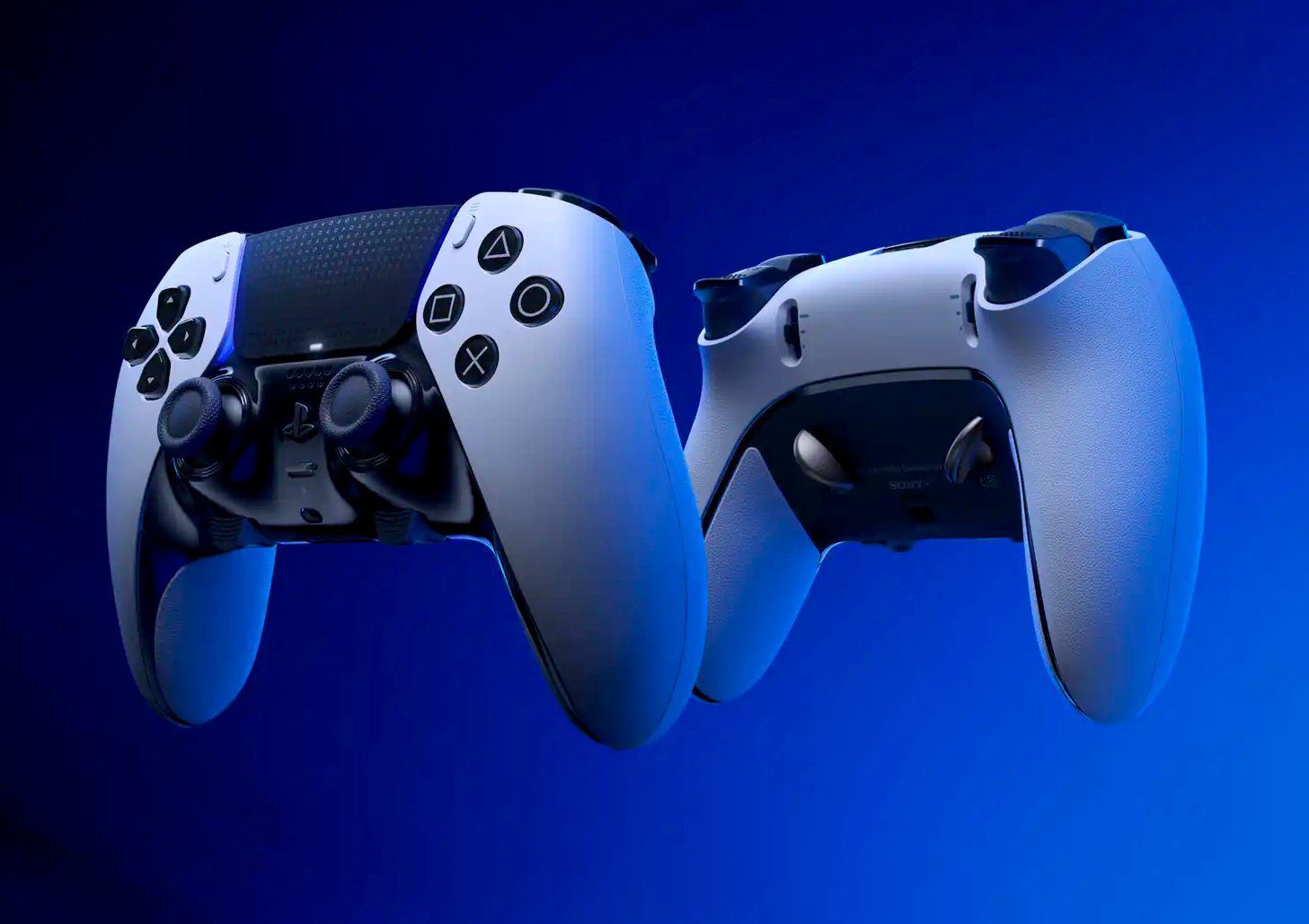
Sony just rolled out a global PS5 system update that beefs up your DualSense controller pairing: now, users of a PlayStation 5 can sync its joystick to multiple devices. The new update is already available for download through the PS5’s own operating system or through the PlayStation Support website (read on for a quick guide on that too).
The announcement, published on the PlayStation blog, reads:
“Many PS5 peripherals, including the DualSense wireless controller, are designed to support a variety of devices beyond PS5 including PC, Mac, and mobile devices. We believe enabling compatibility of our peripherals across multiple platforms creates a more flexible and seamless gaming experience.
As part of this effort, we’re excited to announce that the latest PS5 system update will add a new feature that allows DualSense wireless controllers and DualSense Edge wireless controllers to be paired across multiple devices simultaneously, making it easier to switch between them without needing to pair each time.”
Before this update rolled out, if you wanted to use a DualSense controller on any other device, a pairing process was required every time you’d connect with it. Now, Sony has made it so the controller memorizes the pairing pattern, automatically connecting to your desired device as you see fit.
According to Sony, the DualSense controller pairing can be done with four different devices at the same time, which should make it easier in case you want to leave the PS5 and instantly move your gaming to your PC or smartphone—the latter, for you Remote Play aficionados.
How to download the PlayStation 5 System Update
Before anything else, make sure you’re running on the latest firmware on the PlayStation 5’s operating system. This is usually done automatically if your console is connected to the internet (regardless of this being Wi-Fi or wired connection, except the latter is a lot faster and more stable—but you do you).
If you need to do this manually (or if you just want to confirm you’re already on the necessary version), here’s what you’ll do:
- Go to Settings > System > System Software > System Software Update.
- Select Update System Software.
- Choose Update Using Internet.
- If an update is available, your PS5 will install it and may restart afterward.
Alternatively, you can use an USB flash drive to download the update from a computer, then use that to update the PS5 itself. Here’s how:
- Format the USB drive as FAT32 using a computer.
- Create a folder named PS5, then inside it, make another folder called UPDATE.
- Visit the official PlayStation® support site and download the update file.
- Save the file as PS5UPDATE.PUP inside the UPDATE folder.
- Plug the USB into your PS5.
- Turn off your console, then press and hold the power button until you hear two beeps to enter Safe Mode.
- Select Update System Software > Update from USB Storage Device.
- Follow the on-screen instructions to finish the update.
How to use the DualSense controller pairing across multiple devices
First things first, in order to use this new feature from the DualSense controller, you’ll need to make sure it is disconnected from any USB and its lights are off. Cool? Cool.
Now, what you’ll do is press the PS button simultaneously with any of the Action buttons (Square, Circle, Triangle or Cross) so you can assign a proper slot for the soon-to-be-connected device.
For reference:
- Slot 1: PS button and Triangle button
- Slot 2: PS button and Circle button
- Slot 3: PS button and Cross button
- Slot 4: PS button and Square button
You should hold the “pressing” part for about five seconds. The light bar and player indicator will flash two times, indicating the process is working as it should.
After that, it’s just a matter of turning on Bluetooth on your desired device, finding the option called “Add a new device” (or the equivalent on your device: the actual name changes depending on what you’re using). It should now detect your DualSense controller.
The light bar on the PS5 joystick will light up, and the player indicator’s lights will blink according to the slot number (once for Slot 1, twice for Slot 2 and so on).
How to switch devices
We did say “multiple” devices, didn’t we? So let’s say you had enough of your PC and want to move to your smartphone: you can do that by pressing the PS button and the action buttons (triangle, circle, cross, or square) on your DualSense controller, each one corresponding to a slot. Then, turn on the device you want to connect to.
Press and hold one of the action buttons and the PS button for about 3 seconds. When the light bar and player indicator blink, release both buttons so the light bar lights up again, and the player indicator’s lights blink according to the slot number.
Now, it is worth noting that, while DualSense controller pairing for a smartphone is usually aimed at using the Remote Play feature, you can still use it to play games installed on your device: some games, like Genshin Impact, can even map out the buttons properly across multiple devices, though we can’t say the same for certain emulators.
Oh, and lastly: this is pretty obvious, but the above update is valid for both the base version of the DualSense controller and its beefed-up version DualSense Edge.