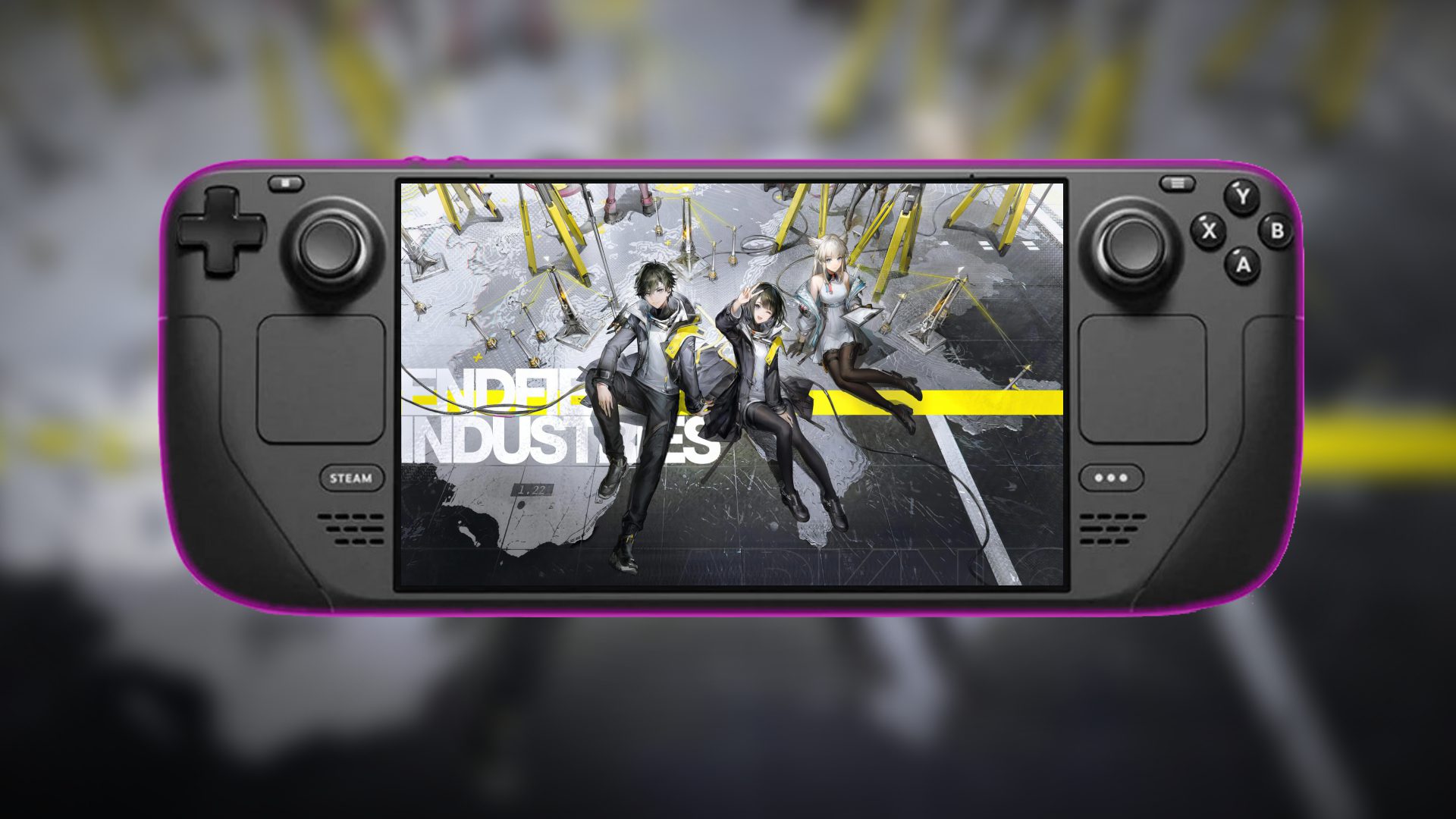
So you picked up a Steam Deck and want to play Arknights: Endfield on it. Then you probably ran into the obvious problem. The game is not available on Steam, which means you cannot install it the normal way through your library.
For some players, that is where the idea ends. But if you are here, you are clearly looking for a workaround. The good news is that it is absolutely possible to run Arknights: Endfield on Steam Deck. It just requires a few extra steps.
None of the methods below requires you to be a Linux expert or a PC tinkerer. If you follow them carefully, you can get the game running in handheld mode without too much frustration. Before starting, though, make sure you have around 80 GB of free storage space on your internal SSD or microSD card. You should also install DW-Proton through ProtonPlus, as it is better suited for games with anti-cheat systems.
Method 1: Epic Games + Decky Loader
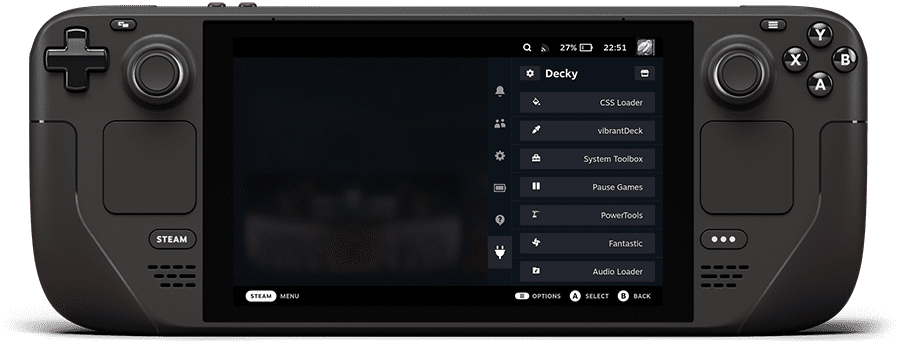
This is the most seamless option. It integrates your Epic Games library into SteamOS, so the game appears in your Steam Library like a native title.
Step 1: Add Arknights: Endfield to your Epic Games library using a web browser on any device.
Step 2: On your Steam Deck, switch to Desktop Mode. Open the Discover Store and install ProtonPlus. Launch ProtonPlus and download the latest version of DW-Proton.
Step 3: While still in Desktop Mode, open a browser and go to decky.xyz. Download and run the Decky Loader installer, selecting the release version.
Step 4: Switch back to Gaming Mode. Open the Quick Access Menu using the three dots button, tap the plug icon, and enable Developer Mode in Decky settings.
Step 5: Install a store-sync plugin such as Junk Store or Unifi Deck through Decky’s plugin browser.
Step 6: Log into your Epic Games account through the plugin and perform a library sync.
Step 7: Once the sync completes, Arknights: Endfield will appear in your Steam Library. Select it, press Install, and wait for the download to finish.
On first launch, the Steam logo may spin for a minute while folders are created. That is normal. After that, the game should run directly from Gaming Mode.
Method 2: Manual Direct Installation
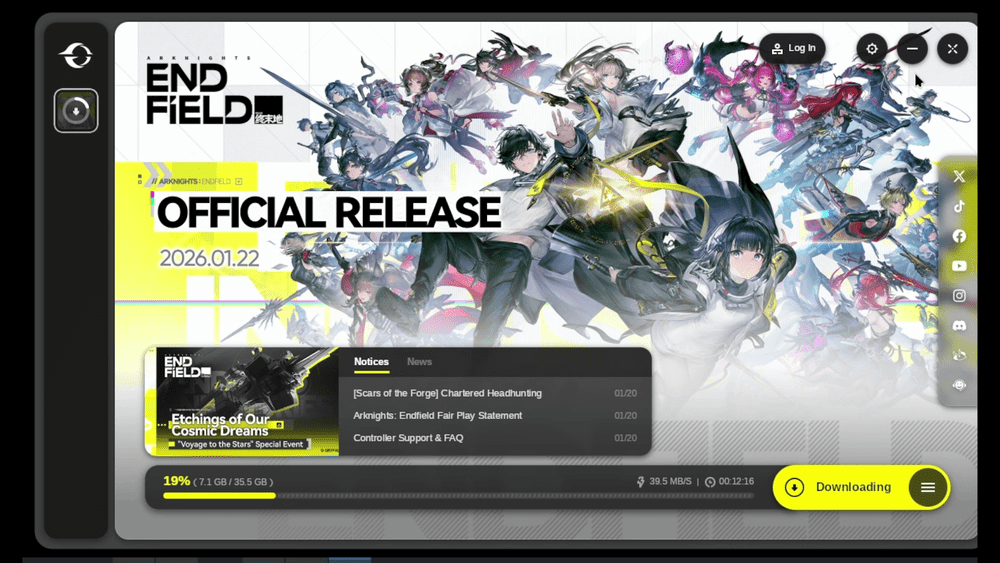
If you prefer not to rely on Epic integration plugins, you can install the Windows launcher manually through Steam.
Step 1: In Desktop Mode, download the Windows version of the GRYPHLINK launcher from the official Arknights: Endfield website.
Step 2: Open Steam and select “Add a Game,” then “Add a Non-Steam Game.” Choose the downloaded installer .exe file.
Step 3: Right-click the newly added shortcut, open Properties, and go to the Compatibility tab. Force it to use the DW-Proton version you installed earlier.
Step 4: Launch the installer. When asked for the installation location, do not use Express Install. Change the directory to Z:\home\deck\Games. This keeps your files accessible instead of buried inside a hidden Proton prefix.
Step 5: After installation finishes, return to the shortcut’s Properties. Update the Target and Start In fields so they point to the launcher.exe file inside your Games/GRYPHLINK folder. You can now launch the game directly from Steam as a non-Steam title.
Optimizing Performance and Stability

Congratulations, you finally managed to install Arknights: Endfield on your Steam Deck and are ready to play it. However, once the game is running, you can improve stability and battery life with a few adjustments:
- Perform your initial login in Desktop Mode if the on-screen keyboard fails to appear in Gaming Mode.
- Set the in-game graphics preset to Low for more consistent performance.
- Keep Render Scale between 90 and 100 percent for better clarity without heavy performance loss.
- Cap the frame rate to 40 or 45 FPS using the Steam Deck’s Quick Access performance menu to reduce overheating and freezing.
- Enable DirectX 11 mode in the launcher before starting the game for improved compatibility.
- Stick with DW-Proton to reduce potential anti-cheat conflicts.
Important Disclaimer!
Arknights: Endfield is not officially supported on Steam Deck. You are running it through compatibility layers and unofficial workarounds. Game updates may break compatibility. Anti-cheat systems may occasionally cause issues. While most players manage fine, there is always some level of risk when running unsupported software. If you understand that and follow the steps carefully, you can absolutely enjoy Arknights: Endfield on your Steam Deck in handheld mode.